In the age of digital photography, the ability to effortlessly edit images is essential. Whether you want to erase unwanted objects or change the entire background, a background remover mobile app can make this process seamless. In this article, we will explore how to use a free background remover app for Android and iPhone to remove objects or people from your photos and change the background with just a few clicks.
What is a Background Remover App?
A background remover app is a photo editing application that utilizes AI technology to help users remove backgrounds or specific objects from images. This tool is particularly useful for creating professional-looking images for social media, websites, or personal projects. With features like generative erase, these apps allow you to enhance your images without any technical expertise.
For this tutorial, we will use the Microsoft Designer app, known for its powerful features.
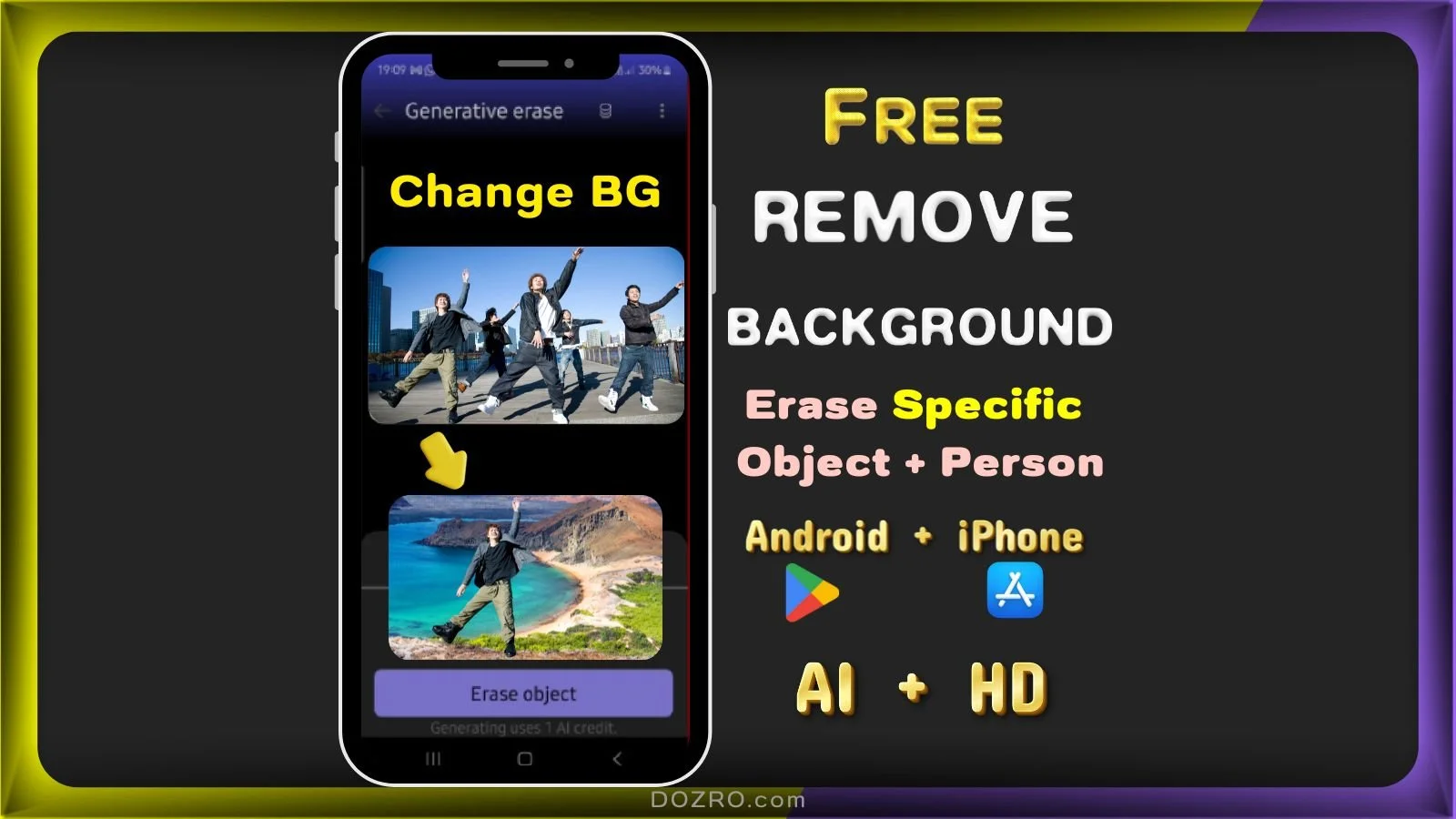
How to Use the Free Background Remover App
Step 1: Download the App
You can download the Microsoft Designer app (a fantastic free background remover app) from the Google Play Store or the App Store.
Step 2: Open the App
Once installed, tap the Microsoft Designer app icon to launch it. This background remover app also allows users to create AI-generated images, but in this case, we will focus on using our own images.
Step 3: Upload Your Photos
To upload images from your mobile gallery, swipe left in the top options and select the “Design from scratch” feature. Choose your desired canvas size (for example, a square design) and tap on “Add Image” to upload your photos.
Step 4: Select the Image for Editing
Although it may not be apparent at first, your uploaded photos are accessible in the app. Tap the back button to navigate to the “Edit with AI” page and select the “Remove background” or “Generative erase” option to view your own photos. All your uploaded images will be listed under “my media.” Choose an image to edit and click the “Generative erase” button.
Step 5: Erase Unwanted Objects
The tool will process your image, allowing you to choose between “Quick Select” or “Brush Select.” If you want to remove an object, simply tap on it. For instance, to erase a plant pot beside a laptop, on a table, tap on the object. The app will automatically create a border around it, and you can then press the “Erase object” button. The app will seamlessly remove the object from the background.
Step 6: Remove People from the Background
If you want to erase a specific person from a group photo, tap on the individual you wish to remove. Adjust your selection as needed until the entire figure is outlined. Press the “Erase object” button, and within seconds, the app will remove the selected person image and blend the empty space with the surrounding area.
Step 7: Create a Transparent Background
To keep only one person in the image while removing others, select the “Selective edit” option, then tap on “Cutout.” The app will outline the chosen individual. After confirming your selection, the tool will remove the other figures, leaving a transparent background.
Step 8: Add a New Background
To replace the transparent background, select “Visuals” and search for your favorite image from the library. For a scenic effect, you might choose a mountain or beach backdrop. Adjust the dimensions to fit your canvas size, then tap “Set as background.” Your subject will now be in the foreground over the new background.
Step 9: Resize and Save Your Image
To resize your design, tap the three-dot menu in the top right corner and select “Resize.” You can choose from popular social media sizes or set custom dimensions. Once satisfied, tap the “Resize and replace” button. Finally, to download your edited image, tap the share icon to save it to your mobile gallery or share it directly to social media.
Frequently Asked Questions
What is the best free background remover app for Android and iPhone?
There are several best background remover apps for Android and iPhone including Canva but background removal feature is not available in Canva free version. Therefore, in my view, Microsoft Designer app, is a good alternative to remove backgrounds free without watermarks.
How can I change the background of my photo using a background remover app?
To change the background, first, remove the existing background using the app. Then, select a new image from the app’s library or upload your own, and set it as the new background.
Can I use AI technology for background removal?
Yes, many modern background remover mobile apps (like Canva, MS Designer) utilize AI technology to enhance the background removal process, making it more efficient and accurate.
More Resources
If you appreciate the valuable free content, you can choose to Support Dozro with a small contribution.
Microsoft Designer: A Comprehensive How-to-Use Guide with Pro.
Design YouTube banner in Perfect Fit: Sizing Made Easy!
Method to Design a Facebook Cover Photo on Canva.
How to use Free Online Website on PC to Erase or Grab Specific Object or Person from Complex Image Background.
YouTube banner design tips and best practices.
Must-have Gear for Aspiring YouTubers: Your Essential Kit in a Quick List.
Download FREE Banners for Facebook, or YouTube, or other Social Media, or Advert Flyers.
Check out our learning resources about Graphic Design.
Find out which is the best video editing software.
Check our Expert Guide about the Facebook Cover Size.
👉️ Check Dozro Price for Creation of YouTube channel banner, Brand Logo, Clickable Business Card, and Small Business Website.
Discover Our Collection of Valuable and Latest Products.
Discover Dozro Services or check out the Home page of our website for additional learning resources.
Make sure to follow Dozro's social media pages including our YouTube channel and Facebook page.