How To Change Squarespace Button Block Colors – Get Premium WCAG-Passed Button Hex Codes Free
Stop Using Muddy Default Squarespace Buttons
Default Squarespace button backgrounds are often too muddy, making the text difficult to read, hurting SEO and accessibility. Furthermore, Squarespace default color themes provide the exact same colors for all 3 types of buttons, which completely destroys visual hierarchy.
In this article, you will get premium, high-contrast hex codes for primary, secondary, and tertiary buttons, optimized for both light and dark Squarespace templates.
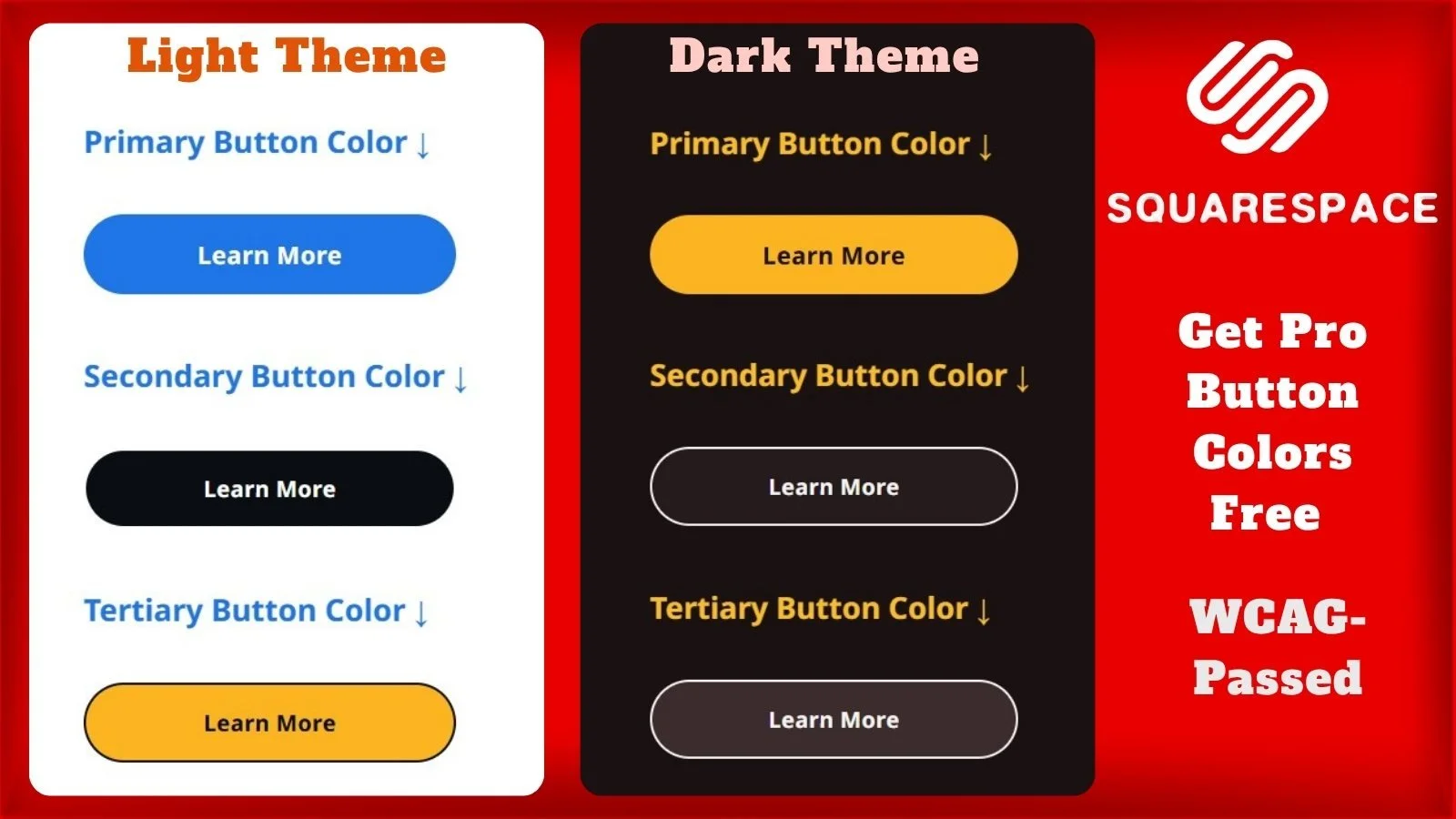
Preview of Our Free, Professionally Crafted Squarespace Button Colors
Why Button Colors Matter
Your buttons are the most important interactive elements on your website. They drive your call-to-action (CTA), guiding users to buy, subscribe, or contact you. Without distinct button color contrast and visual hierarchy, users get confused about which action is the most important. A well-designed button stack drastically improves user experience (UX) and boosts your overall conversion rates.
Button Colors for White Background (#FFFFFF)
These hex codes are pulled directly from our premium "Lightest 1" color theme, designed to provide ultra-clean, agency-level contrast on a pure white Squarespace section background. To achieve the optimal button appearance, make sure the section background of your theme is set to #FFFFFF.
Primary Button Background: #1A73E8
Primary Button Text: #FFFFFF
Secondary Button Background: #0A0E12
Secondary Button Text: #FFFFFF
Tertiary Button Background: #FFB700
Tertiary Button Text: #0A0E12
Button Colors for Dark Background (#1A1112)
These hex codes are from our luxurious "Darkest 2" theme. They are engineered to pop beautifully against a deep, dark Squarespace background color without causing eye strain. For the best visual results, set your theme’s section background to #1A1112 before applying these button colors.
Primary Button Background: #FFB700
Primary Button Text: #1A1112
Secondary Button Background: #261A1C
Secondary Button Text: #F7F4F4
Tertiary Button Background: #3D2C2E
Tertiary Button Text: #F7F4F4
How to Change Button Colors in Squarespace
Follow these quick steps to apply your new custom button colors:
Copy the desired hex code from the lists above.
In your Squarespace editor, click on the Site Styles (paintbrush icon) in the top right corner.
Select Colors, then click on the specific color theme you want to edit (e.g., Lightest 1).
Scroll down the tweak menu until you find the Button section (or simply press Ctrl + F and type "button" to jump directly to its theme settings).
Click on the color circle next to the specific button tweak you want to change.
In the pop-up box, select Custom (instead of Palette). Then, from the dropdown menu on the bottom left of the box, select Hex (instead of RGB or HSL).
Paste the copied hex code into the color input slot.
Click Save to apply your new Squarespace web design tweaks!
Get a Premium, Complete Squarespace Color Theme
While upgrading your buttons is a great first step, it is just one piece of the puzzle. If you change your button colors without adjusting the rest of your site, they may painfully clash with your forms, accordions, dividing lines, and text links.
Stop wasting hours trying to balance hundreds of overlapping settings. The Dozro team has spent countless hours meticulously calculating the perfect Squarespace color palettes for your entire site.
Frequently Asked Questions (FAQs)
How to Check WCAG Contrast for Squarespace Colors?
Proper color contrast is imperative for readability and search engine rankings. You can verify the contrast ratio between your button background and button text by using the free WebAIM Contrast Checker.
Why do I need 3 different button colors?
Having distinct Primary, Secondary, and Tertiary buttons creates a visual hierarchy. It allows you to highlight your most important goal (like "Buy Now") with a bold primary color, while keeping secondary actions (like "Learn More") less visually dominant.
Do default Squarespace themes really fail accessibility standards?
Yes. Many out-of-the-box themes use low-contrast text and backgrounds that make your site difficult to read. You can read our detailed breakdown and see proof of this in our article: Squarespace Default Color Themes Fail WCAG Standards – See the Proof.
See the Dozro Difference (Video)
Watch how our professional custom themes completely transform a generic, hard-to-read Squarespace website into a stunning digital asset.
🌐 See Squarespace in Action: Explore Live Demo Websites
Both Dozro.com and our subsidiary WOZRO.com are built entirely on the Squarespace CMS platform. If you want to see what is possible with advanced Squarespace design, explore our fully interactive, industry-specific live demo websites:
🍕 Restaurant Demo: Experience a high-converting, mobile-first food menu layout at our Premium Pizza Restaurant Live Demo.
👤 Personal / Creator Demo: See an edge-to-edge, distraction-free digital profile at our Personal Website & Premium Link-in-Bio Demo.
🚀 Explore All Demos: Browse our complete catalog of industry-ready websites at WOZRO.com.
Explore More Resources
Get Squarespace Website Design Package on Turnkey Basis.
Explore Our Premium Custom Squarespace Color Themes for Your Website.
Squarespace website live training sessions in one to one private classes.
Squarespace website SEO Services.
How to Change Squarespace Colors for All Major Blocks:Buttons, Forms, Carousel, Text, Social Links, Newsletter, Announcement Bar, Line, Links, Scrolling Text, Logo on Different Pages, Section Background, and Change Color Palette.
How to Set Up Squarespace Custom Branded Colors to Match Your Exact Brand Colors.
Download FREE Banners for Facebook, or YouTube, or other Social Media, or Advert Flyers.
Check Dozro Services List or visit the Homepage of our website.
Be sure to check out Dozro's social media platforms, including our YouTube channel and Facebook page.