How to Change Squarespace Color Palette – Plus 3 Premium 5-Color Palettes
How to Safely Change Your Squarespace Color Palette
Are you trying to figure out how to change Squarespace color palette settings to better match your brand? Every Squarespace 7.1 website is built on a core 5-color palette (Lightest, Light, Accent, Dark, Darkest). For example, the default Ballard template uses a very muted palette: #FFFFFF, #F7F7F7, #A8A6A1, #38383B, and #000000.
While it is easy to swap these colors, Squarespace default color themes rely on an algorithm to auto-generate the colors for your buttons, forms, and backgrounds based on these 5 choices. Unfortunately, this algorithm frequently creates low-contrast messes that fail website accessibility standards.
In this guide, you will learn exactly how to update your main palette, get three professionally balanced 5-color combinations, and discover how to fix the algorithmic errors Squarespace leaves behind.
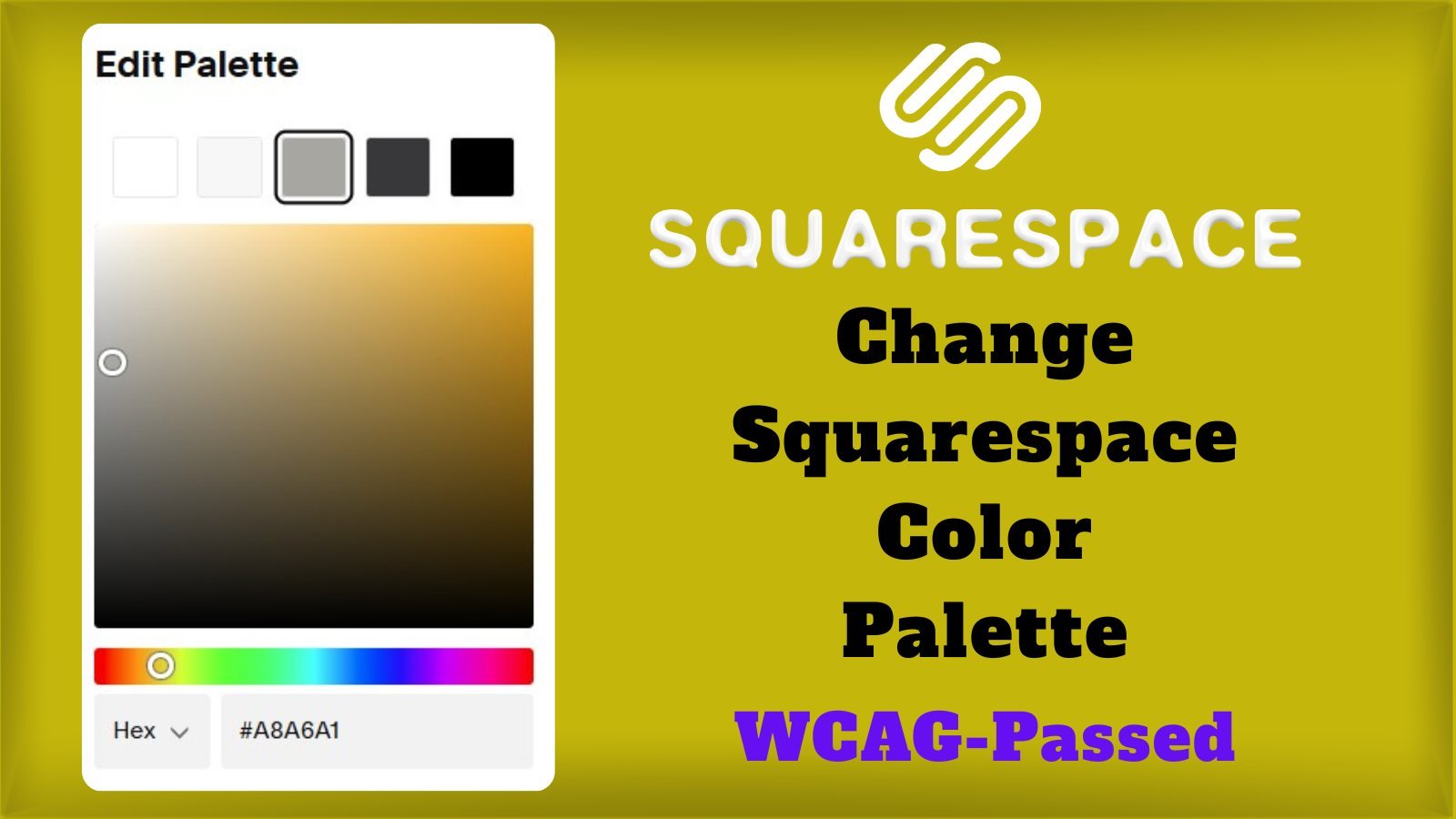
3 Professional 5-Color Palettes (WCAG Friendly)
To ensure your site looks cohesive and maintains high contrast, your 5 colors must follow a strict gradient of light to dark, with a bold accent color in the middle. Here are three premium palettes you can copy right now:
1. The "Midnight & Gold" Palette (High Contrast)
This is a stunning, premium palette perfect for digital agencies and high-end services.
Color 1 (Lightest): #FFFFFF (Pure White)
Color 2 (Light): #F8FAFC (Slate Pearl)
Color 3 (Accent): #FFC000 (Signature Gold)
Color 4 (Dark): #1E293B (Charcoal Blue)
Color 5 (Darkest): #0F172A (Midnight Navy)
2. The "Bold Crimson" Palette (Energetic & Modern)
Perfect for creators, restaurants, and dynamic brands that need to stand out.
Color 1 (Lightest): #FFFFFF (Pure White)
Color 2 (Light): #F1F5F9 (Soft Ice)
Color 3 (Accent): #B91C1C (Vibrant Crimson)
Color 4 (Dark): #4A0404 (Dark Maroon)
Color 5 (Darkest): #0A0E12 (Pitch Black)
3. The "Earthy Creative" Palette (Warm & Sophisticated)
A soft, highly readable palette ideal for portfolios, wellness brands, and architecture.
Color 1 (Lightest): #FAFAF9 (Warm Sand)
Color 2 (Light): #E7E5E4 (Stone Gray)
Color 3 (Accent): #D97706 (Deep Amber)
Color 4 (Dark): #44403C (Walnut)
Color 5 (Darkest): #1C1917 (Deep Espresso)
Step-by-Step: How to Change Color Palette in Squarespace
Follow these quick steps to apply your new 5-color Squarespace palette:
Copy the five hex codes from your chosen palette above.
In your Squarespace editor, click on the Site Styles (paintbrush icon) in the top right corner.
Select Colors.
At the very top of the panel, click Edit Palette.
Click on each of the five color circles (starting from left to right: Lightest, Light, Accent, Dark, Darkest).
In the pop-up box for each, click on the Hex value field and paste the corresponding hex code.
Click Save to apply your new Squarespace web design colors globally!
The Hidden Danger: Why Auto-Generated Themes Fail
Here is the catch: when you update your 5-color palette, Squarespace's internal algorithm automatically generates 10 different "Color Themes" (Lightest 1, Dark 2, etc.) for your site sections.
This algorithm is flawed. It often pairs your new accent color with backgrounds that make text invisible, or it assigns blindingly bright colors to your form fields and carousel cards. Relying solely on the auto-generated palette will likely cause your site to fail WCAG contrast ratios, severely hurting your Squarespace SEO and user experience.
Stop wasting hours trying to manually fix the hundreds of overlapping algorithmic errors. The Dozro team has meticulously calculated, tested, and manually mapped the perfect Squarespace color tweaks for every single block on your website.
Frequently Asked Questions (FAQs)
What happens to my existing pages when I change the 5-color palette?
When you change the main 5-color palette, Squarespace will automatically update the colors across your entire website based on its algorithm. This is why it is crucial to review your site immediately after—you will likely need to manually fix contrast issues on buttons, forms, and text links.
How to Check WCAG Contrast for Squarespace Colors?
Proper color contrast is imperative for readability and search engine rankings. You can verify if Squarespace's algorithm made a mistake by checking your text and background combinations using the free WebAIM Contrast Checker.
Do default Squarespace templates like Ballard have bad contrast?
Yes, many default templates use extremely muted tones (like #A8A6A1 gray text on a #F7F7F7 gray background) that completely fail accessibility standards. You can read our detailed breakdown and see proof of this in our article: Squarespace Default Color Themes Fail WCAG Standards – See the Proof.
See the Dozro Difference
Watch how our professional custom themes completely transform generic, algorithmic Squarespace layouts into stunning, high-converting digital assets.
🌐 See Squarespace in Action: Explore Live Demo Websites
Both Dozro.com and our subsidiary WOZRO.com are built entirely on the Squarespace CMS platform. If you want to see what is possible with advanced Squarespace design, explore our fully interactive, industry-specific live demo websites:
🍕 Restaurant Demo: Experience a high-converting, mobile-first food menu layout at our Premium Pizza Restaurant Live Demo.
👤 Personal / Creator Demo: See an edge-to-edge, distraction-free digital profile at our Personal Website & Premium Link-in-Bio Demo.
🚀 Explore All Demos: Browse our complete catalog of industry-ready websites at WOZRO.com.
Explore More Resources
Get Squarespace Website Design Package on Turnkey Basis.
Explore Our Premium Custom Squarespace Color Themes for Your Website.
Squarespace website live training sessions in one to one private classes.
Squarespace website SEO Services.
How to Change Squarespace Colors for All Major Blocks:Buttons, Forms, Carousel, Text, Social Links, Newsletter, Announcement Bar, Line, Links, Scrolling Text, Logo on Different Pages, Section Background, and Change Color Palette.
How to Set Up Squarespace Custom Branded Colors to Match Your Exact Brand Colors.
Download FREE Banners for Facebook, or YouTube, or other Social Media, or Advert Flyers.
Check Dozro Services List or visit the Homepage of our website.
Be sure to check out Dozro's social media platforms, including our YouTube channel and Facebook page.