How to Change Squarespace Scrolling Text Block Colors – Get Premium WCAG-Passed Hex Codes Free
How to Change Your Squarespace Scrolling Text Color for Maximum Impact
Are you wondering how to change Squarespace scrolling text colors because your moving marquee is blending right into the background? Default Squarespace scrolling text blocks often use washed-out gray tones or low-contrast theme colors that make moving text incredibly difficult to read. Because the text is in motion, Squarespace default color themes that lack high visual contrast can actually cause eye strain and frustrate your website visitors.
In this step-by-step guide, you will learn exactly how to customize your scrolling marquee, and you will get premium, high-contrast hex codes for your scrolling text—perfectly optimized for both light and dark Squarespace templates.
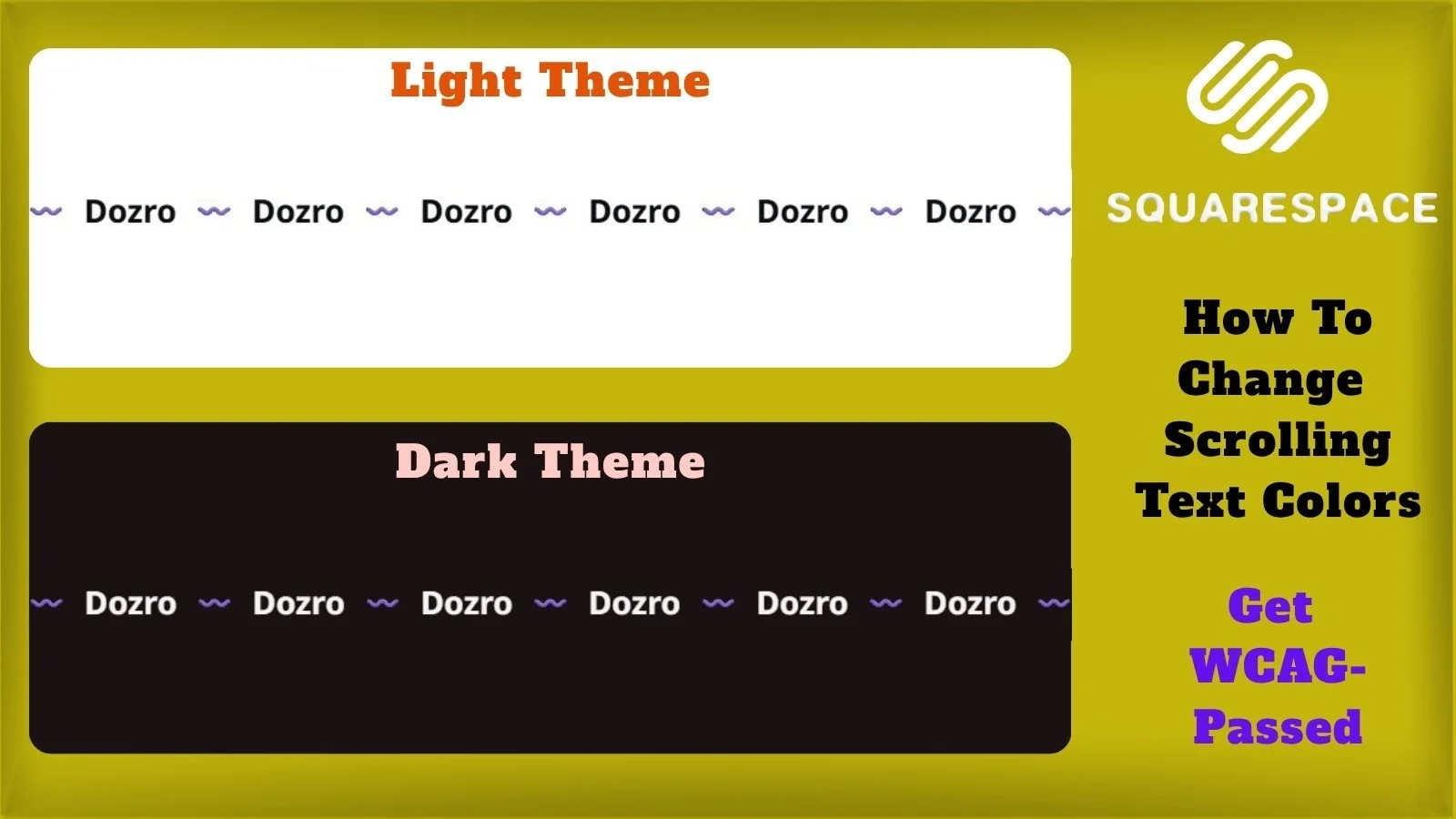
Preview of Our Free, Professionally Crafted Squarespace scrolling text Colors
Why Scrolling Text Colors Matter
The scrolling text block (or marquee) is a dynamic element designed to catch the eye and highlight important announcements, brand values, or partner logos. However, motion combined with poor color contrast is a recipe for disaster. If a user cannot comfortably read your moving text, they will simply scroll past it. Upgrading your Squarespace scrolling text color to a bold, highly readable shade ensures your message gets across without causing visual fatigue. Moreover, ensuring your dynamic elements pass strict website accessibility guidelines keeps your site compliant and acts as a positive ranking signal for your Squarespace SEO.
Scrolling Text Colors for White Background (#FFFFFF)
To make your scrolling marquee look crisp and engaging on a pure white section background, use the following WCAG-passed colors. To achieve the optimal scrolling text appearance, make sure the section background of your theme is set to #FFFFFF.
SCROLLING
Heading Color: #0A0E12
Paragraph Color: #38383B
Background Color: #FFFFFF
Stroke Color: #E8EAED
Heading Color on Background: #0A0E12
Paragraph Color on Background: #38383B
Scrolling Text Colors for Dark Background (#1A1112)
For a stunning, highly visible contrast that pops against your deepest dark themes, apply these specific Squarespace color tweaks. For the best visual results, set your theme’s section background to #1A1112 before applying these scrolling text colors.
SCROLLING
Heading Color: #F7F4F4
Paragraph Color: #D1C7C8
Background Color: #1A1112
Stroke Color: #3D2C2E
Heading Color on Background: #F7F4F4
Paragraph Color on Background: #D1C7C8
Step-by-Step: How to Change Scrolling Text Colors in Squarespace
Follow these quick steps to apply your new custom scrolling text block colors:
Copy the desired hex code from the lists above.
In your Squarespace editor, click on the Site Styles (paintbrush icon) in the top right corner.
Select Colors, then click on the specific color theme you want to edit (e.g., Lightest 1 or Darkest 2).
Scroll down the tweak menu until you find the Scrolling Text Block section (or simply press Ctrl + F and type "scrolling" to jump directly to its theme settings).
Click on the color circle next to the specific tweak you want to change (like Heading or Paragraph).
In the pop-up box, select Custom (instead of Palette). Then, from the dropdown menu on the bottom left of the box, select Hex (instead of RGB or HSL).
Paste the copied hex code into the color input slot.
Click Save to apply your new Squarespace web design tweaks!
Get a Complete Premium Color Theme
Fixing your scrolling text is a great way to add dynamic energy to your page, but it is only one small component of your site's digital architecture. If you customize your marquee colors without adjusting the rest of your site, it might painfully clash with your primary headings, text links, and background overlays.
Stop wasting hours trying to balance hundreds of overlapping settings manually. The Dozro team has meticulously calculated and tested the perfect Squarespace color palettes for your entire website.
Frequently Asked Questions (FAQs)
How to Check WCAG Contrast for Squarespace Colors?
Proper color contrast is imperative for readability and search engine rankings, especially for moving text. You can easily verify the contrast ratio between your scrolling text color and the section background by using the free WebAIM Contrast Checker.
Why is my Squarespace scrolling text so hard to read?
This is a frequent issue with default Squarespace themes. The built-in templates often assign a thin font weight and a low-contrast color to the scrolling block. When text moves, it requires even higher contrast than static text to remain legible. Applying a bold, custom hex code instantly solves this readability issue.
Do default Squarespace themes really fail accessibility standards?
Yes. Many out-of-the-box themes use low-contrast text and UI elements that make your site difficult to navigate and read. You can read our detailed breakdown and see proof of this in our article: Squarespace Default Color Themes Fail WCAG Standards – See the Proof.
See the Dozro Difference
Watch how our professional custom themes completely transform generic, hard-to-read Squarespace blocks and layouts into stunning digital assets.
Explore More Resources
Get Squarespace Website Design Package on Turnkey Basis.
Explore Our Premium Custom Squarespace Color Themes for Your Website.
Squarespace website live training sessions in one to one private classes.
Squarespace website SEO Services.
How to Change Squarespace Colors for All Major Blocks: Buttons, Forms, Carousel, Text, Social Links, Newsletter, Announcement Bar, Line, Links, Scrolling Text, Logo on Different Pages, Section Background, and Change Color Palette.
How to Set Up Squarespace Custom Branded Colors to Match Your Exact Brand Colors.
Download FREE Banners for Facebook, or YouTube, or other Social Media, or Advert Flyers.
Check Dozro Services List or visit the Homepage of our website.
Be sure to check out Dozro's social media platforms, including our YouTube channel and Facebook page.