How to Change Squarespace Section Background Colors & Edit Color Themes – Step-by-Step Guide
How to Change Squarespace Background Colors and Customize Color Themes
If you are trying to figure out how to change Squarespace section background color settings or wondering how to edit a Squarespace color theme, you are not alone. In Squarespace 7.1, background colors are directly tied to your site's 10 built-in "Color Themes" (Lightest 1, Light 1, Dark 1, Darkest 2, etc.).
There are two distinct parts to this process:
Switching the background color of a single section by assigning a different theme to it.
Editing the actual colors (backgrounds, text, buttons) inside a specific theme.
In this step-by-step guide, you will learn how to do both, plus how to fix the common issue where changing a background color makes your text completely unreadable due to poor contrast.
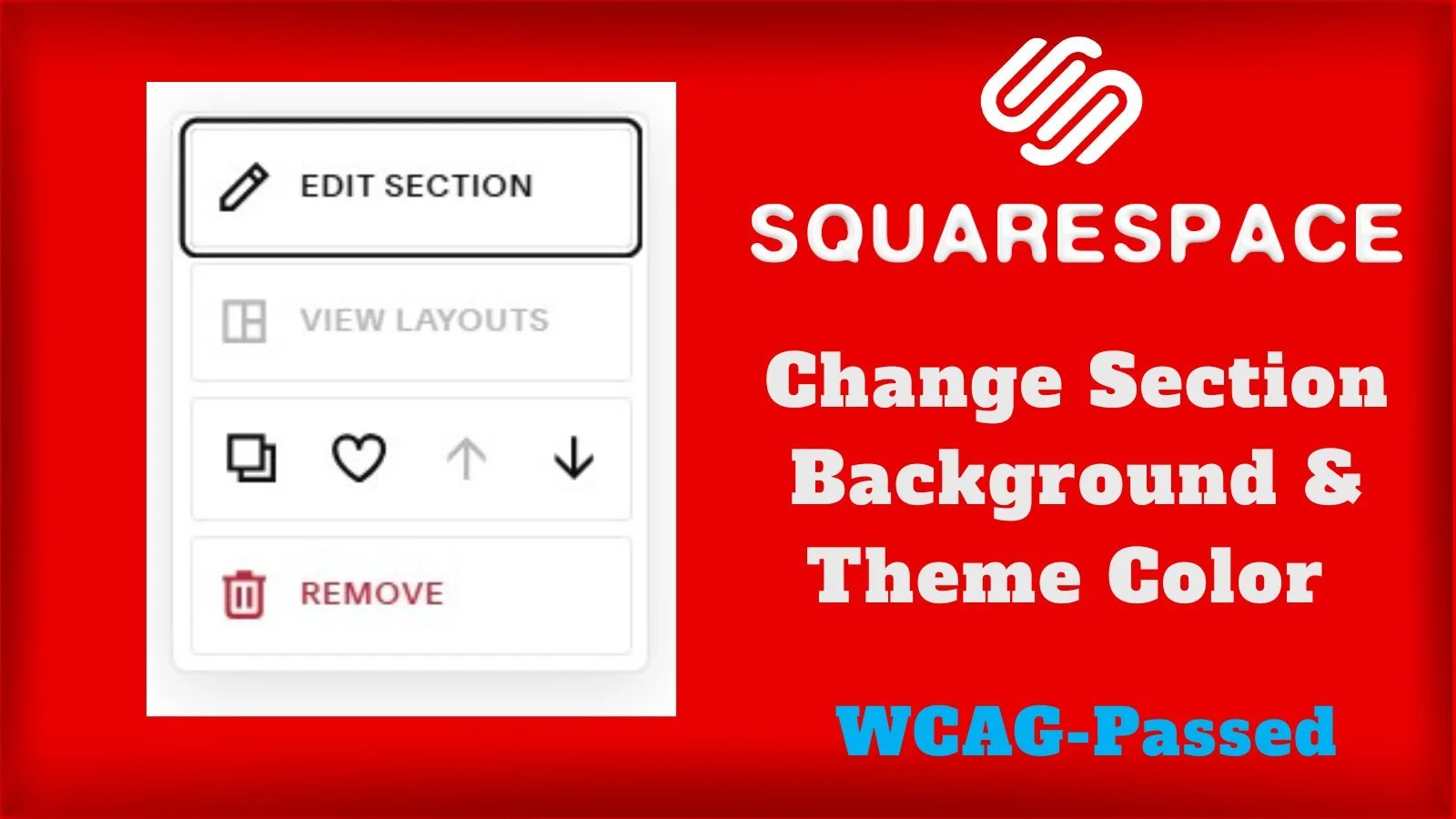
Method 1: How to Change the Background Color of a Specific Section (Change Color Theme)
If you simply want to change a specific section on your page from a white background to a dark or colorful background, follow these quick steps to switch its assigned theme:
Open your page in the Squarespace editor and click Edit in the top left corner.
Hover over the specific section you want to change and click Edit Section (or the pencil icon), located on top right of section.
In the popup panel, click on the Colors tab.
Select one of the 10 available color themes (e.g., Lightest 1, Bright 2, or Darkest 2).
The background color of that section—along with its text, buttons, and form colors—will instantly update to match the selected theme.
Click Save in the top left corner when finished.
Method 2: How to Edit the Actual Background Color Inside a Color Theme
What if you don't like the exact color assigned to a theme? You can customize the specific background shade of any color theme site-wide:
In your Squarespace editor, click on the Site Styles (paintbrush icon) in the top right corner.
Select Colors, then click on the specific color theme you want to edit (e.g., Lightest 1 or Darkest 2).
Under the Sitewide section at the very top of the tweak menu, find Section Background.
Click on the color circle next to Section Background.
In the pop-up box, select Custom (instead of Palette). Then, from the dropdown menu on the bottom left of the box, select Hex (instead of RGB or HSL).
Paste your desired background hex code into the input slot.
Click Save to apply your new Squarespace web design tweaks globally!
The Danger: Why Changing Section Background Colors Causes Unreadable Text
When you change a section's background color, Squarespace's internal algorithm attempts to automatically pick text and button colors to match. Unfortunately, Squarespace default color themes frequently fail website accessibility guidelines.
For example, changing a section background to a mid-tone gray or red often leaves your text, line dividers, and form input fields in a low-contrast state that ruins legibility and triggers penalties in Google Lighthouse, actively hurting your Squarespace SEO.
Stop wasting hours trying to balance hundreds of overlapping settings manually. The Dozro team has meticulously calculated and tested the perfect, WCAG-passed Squarespace color palettes for your entire website.
Frequently Asked Questions (FAQs)
Why did my text disappear when I changed the section background color?
If your text disappears after changing a section background color, it means the Heading or Paragraph text color inside that specific theme is set to the exact same hex code as the background. You must go to Site Styles > Colors > [Select Theme] and manually update the text colors to a high-contrast shade.
How to Check WCAG Contrast for Squarespace Section Colors?
Proper color contrast between your section background and foreground text is imperative for readability and search engine rankings. You can easily verify if your background and text pass accessibility standards by using the free WebAIM Contrast Checker.
Do default Squarespace section backgrounds fail accessibility standards?
Yes. Many out-of-the-box themes use low-contrast text and background combinations that make your site difficult to read. You can read our detailed breakdown and see proof of this in our article: Squarespace Default Color Themes Fail WCAG Standards – See the Proof.
See the Dozro Difference
Watch how our professional custom themes completely transform generic, low-contrast Squarespace layouts into stunning, high-converting digital assets.
🌐 See Squarespace in Action: Explore Live Demo Websites
Both Dozro.com and our subsidiary WOZRO.com are built entirely on the Squarespace CMS platform. If you want to see what is possible with advanced Squarespace design, explore our fully interactive, industry-specific live demo websites:
🍕 Restaurant Demo: Experience a high-converting, mobile-first food menu layout at our Premium Pizza Restaurant Live Demo.
👤 Personal / Creator Demo: See an edge-to-edge, distraction-free digital profile at our Personal Website & Premium Link-in-Bio Demo.
🚀 Explore All Demos: Browse our complete catalog of industry-ready websites at WOZRO.com.
Explore More Resources
Get Squarespace Website Design Package on Turnkey Basis.
Explore Our Premium Custom Squarespace Color Themes for Your Website.
Squarespace website live training sessions in one to one private classes.
Squarespace website SEO Services.
How to Change Squarespace Colors for All Major Blocks:Buttons, Forms, Carousel, Text, Social Links, Newsletter, Announcement Bar, Line, Links, Scrolling Text, Logo on Different Pages, Section Background, and Change Color Palette.
How to Set Up Squarespace Custom Branded Colors to Match Your Exact Brand Colors.
Download FREE Banners for Facebook, or YouTube, or other Social Media, or Advert Flyers.
Check Dozro Services List or visit the Homepage of our website.
Be sure to check out Dozro's social media platforms, including our YouTube channel and Facebook page.