How To Change Squarespace Text Colors – Get Premium WCAG Heading & Paragraph Hex Codes Free
Fix Unreadable Squarespace Typography with High-Contrast Text Colors
Default Squarespace text colors often lack sufficient contrast, making paragraphs difficult to read and causing eye strain. Furthermore, Squarespace default color themes frequently provide the exact same color for all headings (H1–H4) and paragraph text, resulting in a completely flat page with no visual hierarchy.
In this article, you will get premium hex codes for headings and paragraphs, perfectly engineered for both light and dark themes to ensure maximum legibility and a beautiful typographic hierarchy.
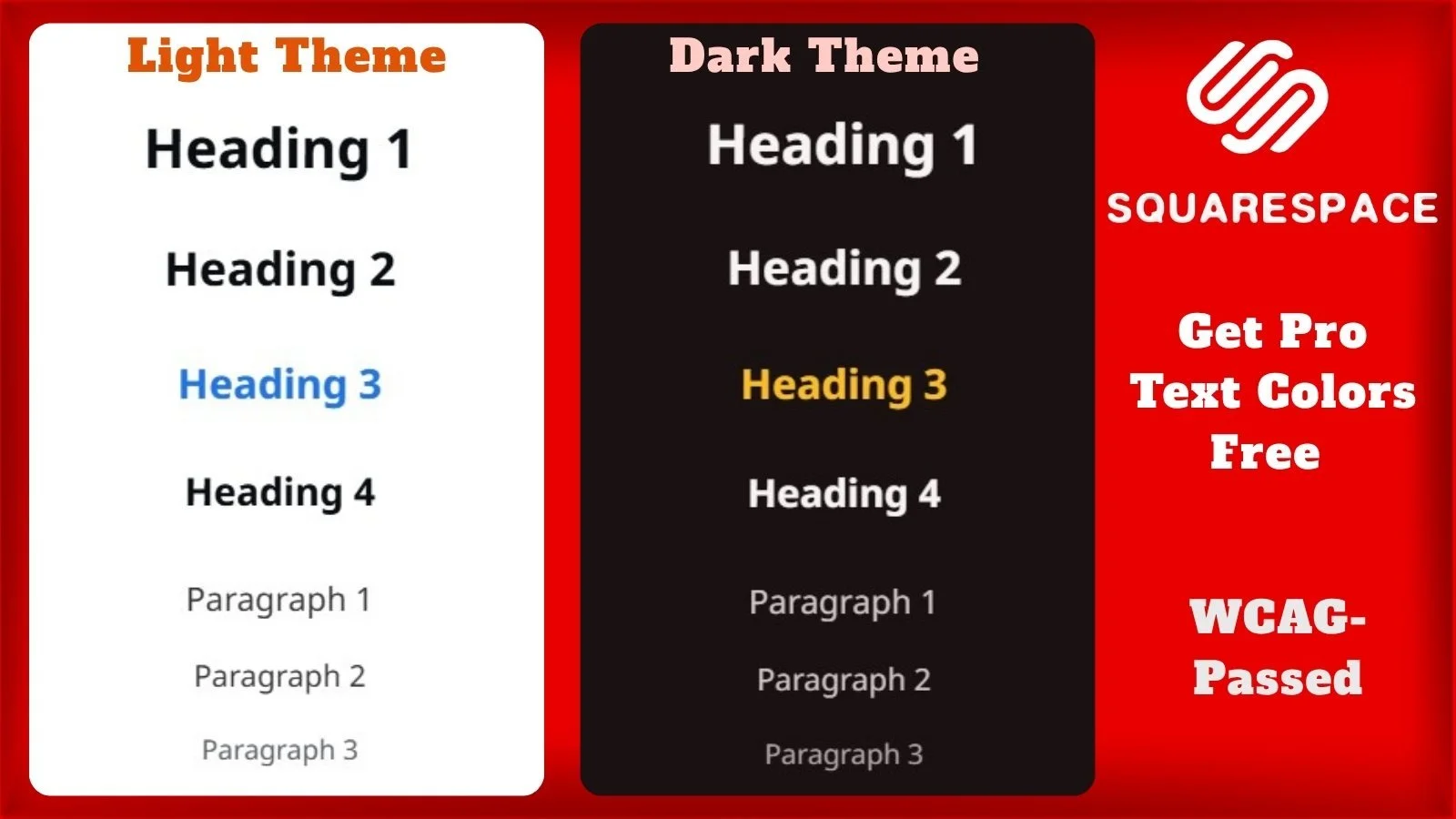
Preview of Our Free, Professionally Crafted Squarespace Text Colors
Why Squarespace Text Colors Matter
Your website's typography is the primary vehicle for your message. If your paragraph text color is too light on a white background, or too bright on a dark background (causing halation), users will simply stop reading. Proper text color contrast reduces visual fatigue, while implementing a distinct variant color for specific headings (like your H3) creates a scanning hierarchy that guides the reader's eye seamlessly down the page, directly improving your website user experience (UX).
Text Colors for White Background (#FFFFFF)
These hex codes are pulled directly from our premium "Lightest 1" color theme, designed to provide ultra-clean, agency-level contrast that prevents eye strain on a pure white Squarespace section background. To achieve the optimal text appearance, make sure the section background of your theme is set to #FFFFFF.
TEXT
Heading (Extra Large): #0A0E12
Heading (Large): #0A0E12
Heading (Medium): #1A73E8 (Variant Color)
Heading (Small): #0A0E12
Paragraph (Large): #38383B
Paragraph (Medium): #38383B
Paragraph (Small): #5F6368
Text Highlight: #FFB700
Background Color: #FFFFFF
Stroke Color: #E8EAED
Heading (Extra Large) on Background: #0A0E12
Heading (Large) on Background: #0A0E12
Heading (Medium) on Background: #1A73E8
Heading (Small) on Background: #0A0E12
Paragraph (Large) on Background: #38383B
Paragraph (Medium) on Background: #38383B
Paragraph (Small) on Background: #5F6368
Text Highlight on Background: #FFB700
Text Colors for Dark Background (#1A1112)
These hex codes are sourced from our luxurious "Darkest 2" theme. They are specifically balanced to pop beautifully against a deep, dark Squarespace background color without causing the blurry "glowing" effect common in poorly designed dark modes. For the best visual results, set your theme’s section background to #1A1112 before applying these text colors.
TEXT
Heading (Extra Large): #F7F4F4
Heading (Large): #F7F4F4
Heading (Medium): #FFC000 (Variant Color matched to links)
Heading (Small): #F7F4F4
Paragraph (Large): #D1C7C8
Paragraph (Medium): #D1C7C8
Paragraph (Small): #B3A6A8
Text Highlight: #FFB700
Background Color: #1A1112
Stroke Color: #3D2C2E
Heading (Extra Large) on Background: #F7F4F4
Heading (Large) on Background: #F7F4F4
Heading (Medium) on Background: #FFC000 (Variant Color matched to links)
Heading (Small) on Background: #F7F4F4
Paragraph (Large) on Background: #D1C7C8
Paragraph (Medium) on Background: #D1C7C8
Paragraph (Small) on Background: #B3A6A8
Text Highlight on Background: #FFB700
How to Change Text Colors in Squarespace
Follow these quick steps to apply your new custom text colors in Squarespace:
Copy the desired hex code from the color lists provided above.
In your Squarespace editor, click on the Site Styles (paintbrush icon) in the top right corner.
Select Colors, then click on the specific Squarespace color theme you want to customize (e.g., Lightest 1 or Darkest 2).
Scroll down the tweak menu until you reach the Text section (or press Ctrl + F / Cmd + F and type "text" or “heading” to jump directly to its theme settings).
Click on the color circle next to a specific text tweak (like Paragraph Medium). In the pop-up color picker, choose Custom (instead of Palette), and from the dropdown menu on the bottom left of the box, select HEX (instead of RGB or HSL).
Paste the copied hex code into the value field.
Click Save in the top left corner to apply your new website design tweaks!
Get a Premium, Complete Squarespace Color Theme
Fixing your typography is a crucial step toward better readability, but it is only one piece of the puzzle. If you customize your text colors without adjusting the rest of your site, your new text might clash painfully with your buttons, forms, accordions, and background overlays.
Stop wasting hours trying to manually balance hundreds of overlapping settings. The Dozro team has meticulously calculated and tested the perfect Squarespace color palettes for your entire website.
Frequently Asked Questions (FAQs)
How to Check WCAG Contrast for Squarespace Colors?
Proper color contrast is imperative for readability and search engine rankings. You can easily verify the contrast ratio between your paragraph text and your section background by using the free WebAIM Contrast Checker.
Why should I use a different color for Heading (Medium)?
Applying a distinct variant color to your Heading 3 (Heading Medium) acts as a visual "scroll-stopper." It breaks up the monotony of the page, highlights specific sub-topics, and instantly draws the reader's attention to key sections of your content.
Do default Squarespace themes really fail accessibility standards?
Yes. Many out-of-the-box themes use low-contrast text—often pairing light gray paragraphs with white backgrounds—making your site difficult to read. You can read our detailed breakdown and see proof of this in our article: Squarespace Default Color Themes Fail WCAG Standards – See the Proof.
See the Dozro Difference
Watch how our professional custom themes completely transform washed-out, hard-to-read Squarespace typography into stunning, accessible digital assets.
🌐 See Squarespace in Action: Explore Live Demo Websites
Both Dozro.com and our subsidiary WOZRO.com are built entirely on the Squarespace CMS platform. If you want to see what is possible with advanced Squarespace design, explore our fully interactive, industry-specific live demo websites:
🍕 Restaurant Demo: Experience a high-converting, mobile-first food menu layout at our Premium Pizza Restaurant Live Demo.
👤 Personal / Creator Demo: See an edge-to-edge, distraction-free digital profile at our Personal Website & Premium Link-in-Bio Demo.
🚀 Explore All Demos: Browse our complete catalog of industry-ready websites at WOZRO.com.
Explore More Resources
Get Squarespace Website Design Package on Turnkey Basis.
Explore Our Premium Custom Squarespace Color Themes for Your Website.
Squarespace website live training sessions in one to one private classes.
Squarespace website SEO Services.
How to Change Squarespace Colors for All Major Blocks:Buttons, Forms, Carousel, Text, Social Links, Newsletter, Announcement Bar, Line, Links, Scrolling Text, Logo on Different Pages, Section Background, and Change Color Palette.
How to Set Up Squarespace Custom Branded Colors to Match Your Exact Brand Colors.
Download FREE Banners for Facebook, or YouTube, or other Social Media, or Advert Flyers.
Check Dozro Services List or visit the Homepage of our website.
Be sure to check out Dozro's social media platforms, including our YouTube channel and Facebook page.