Customizing colors across a website can seem intimidating if you do not understand the underlying system. In Squarespace 7.1, color management is governed by an intelligent, centralized engine designed to make sitewide color changes fast, cohesive, and effortless.
Whether you want to change your site background, adjust button colors, make text pop, or customize individual blocks (like forms, quote blocks, and carousels), this guide breaks down the essential rules and methods for mastering color customization in Squarespace 7.1.
🌐 See Squarespace in Action: Explore Live Demo Websites
Both Dozro.com and our subsidiary WOZRO.com are built entirely on the Squarespace CMS platform. If you want to see what is possible with advanced Squarespace design, explore our fully interactive, industry-specific live demo websites:
🍕 Restaurant Demo: Experience a high-converting, mobile-first food menu layout at our Premium Pizza Restaurant Live Demo.
👤 Personal / Creator Demo: See an edge-to-edge, distraction-free digital profile at our Personal Website & Premium Link-in-Bio Demo.
🚀 Explore All Demos: Browse our complete catalog of industry-ready websites at WOZRO.com.
How to Access Squarespace Color Settings
In Squarespace 7.1, all global styling controls are centralized under the Site Styles panel.
Fast Access Route:
Open your website in edit mode and click the Site Styles icon (the paintbrush in the top-right corner).
In the Site Styles sidebar, select Colors.
At the top of the panel, you will see the Edit Palette button (controlling your 5 core brand colors).
Below that, you will see the list of 10 Color Themes (Lightest 1 & 2, Light 1 & 2, Bright 1 & 2, Dark 1 & 2, and Darkest 1 & 2).
To close the panel, click the paintbrush icon again or click anywhere inside the website preview area.
The 3 Golden Rules of Squarespace Color Customization
To avoid confusion and prevent wasted time editing the wrong settings, keep these 3 core rules in mind:
Rule 1: Customize Your Dominant Theme for Sitewide Changes:
Template designers build 80% to 90% of a template using one base theme (such as Lightest 1 or Dark 1). Tweaking the section background, headings, or button settings inside that specific dominant color theme updates almost every page on your website in one click.
Rule 2: Use Secondary Themes for Contrast and Prominence:
Assigning a contrasting theme (like Darkest 1 or Bright 1) to a specific section overrides the dominant theme for that section only. This allows you to create high-impact call-to-action (CTA) banners, newsletter forms, or announcement strips without affecting standard body pages.
Rule 3: All 10 Themes Are Global Across the Entire Website:
Every time you edit a micro-tweak inside any color theme (by clicking the pencil icon next to it), that change applies to every section across your entire website that is assigned to that theme.
5 Main Methods to Change Site Colors in Squarespace 7.1
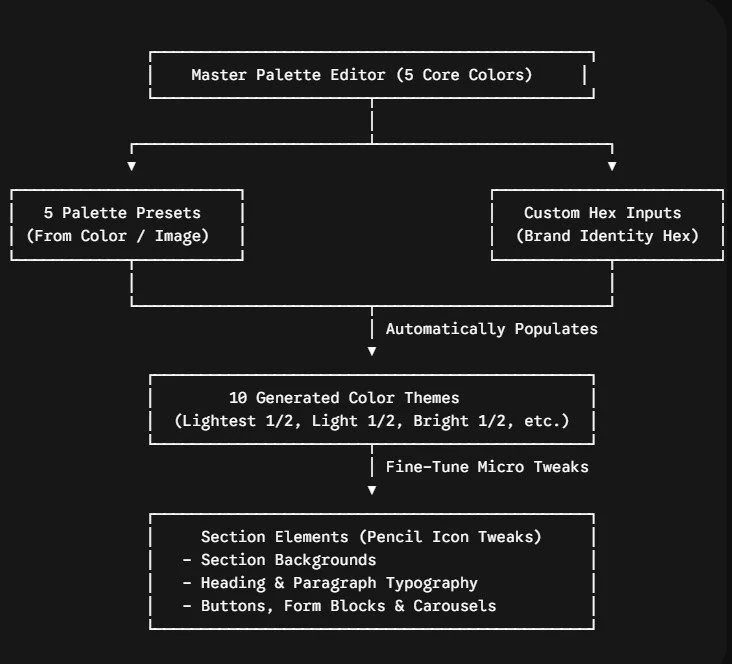
You can customize your site colors using any of the following 5 methods depending on your design goals:
1. Fine-Tuning Individual Color Themes (Micro-Tweaks)
To customize specific elements within a theme:
Go to Site Styles > Colors.
Hover over any of the 10 themes and click the pencil icon on the right side.
You can manually adjust colors for Section Background, Headings (H1–H4), Paragraphs (P1–P3), Buttons (Primary/Secondary/Tertiary), Form Fields, Quotes, and navigation links.
2. Customizing the 5-Color Master Palette
If you have established brand colors:
Go to Site Styles > Colors > Edit Palette.
Click on any of the 5 color circles along the top to enter your brand’s exact hex codes.
Changing these 5 colors automatically recalculates default pairings across all 10 color themes.
3. Applying Built-In Designer Presets
Inside Edit Palette, click Presets.
Choose from curated designer palettes to instantly overhaul your website’s mood and aesthetic with pre-balanced color combinations.
4. Generating Palettes "From Image"
Navigate to Edit Palette > From Image.
Upload a high-resolution logo, mood board, or hero photo. Squarespace will sample the primary tones and create a 5-color palette automatically.
5. Generating Harmonious Palettes "From Color"
Navigate to Edit Palette > From Color.
Enter a single core brand hex code and select Monochrome, Complementary, or Analogous to generate mathematically balanced color schemes.
How to Copy Colors From One Template to Another
If you like the background or button colors of one Squarespace template (e.g., Barbosa) but prefer the layout of another (e.g., Carmine), you can easily transfer the colors:
Open your reference template and navigate to Site Styles > Colors.
Click the pencil icon next to the theme whose color you admire.
Click the color circle next to the element (e.g., Section Background or Primary Button Background), select Custom, and copy the 6-digit hex code (e.g., #1A2B3C).
Switch to your active template, navigate to the corresponding theme settings, and paste that hex code into the color picker.
Click Save in the top-left corner to apply the exact shade across your live site.
Level Up Your Design with WCAG-Passed Color Themes
Default color choices can sometimes create unreadable text, low-contrast form fields, or inaccessible buttons.
If you want professionally tested color palettes that guarantee crystal-clear typography and full compliance with international accessibility standards, explore our Premium Squarespace Color Themes for instant DIY copies and expert installation options.
❓ Frequently Asked Questions (FAQ)
What is the fastest way to change the background color of my entire website?
Find your template’s dominant color theme (the theme assigned to most sections). Navigate to Site Styles > Colors, click the pencil icon next to that dominant theme, and update the Section Background color. Because that theme is applied across 80%+ of your site, your entire website updates instantly.
Will editing a color theme affect only the current page?
No. All 10 color themes in Squarespace 7.1 are global. Any adjustment made inside a theme’s settings panel applies to every section across every page that uses that theme.
Can I set different colors for individual sections?
Yes. You can assign any of the 10 available color themes to any individual section. Hover over the section, click Edit Section (pencil icon) > Colors, and select a contrasting theme (such as Bright 1 or Darkest 1).
What should I do if a color change doesn't look right?
You can reset any theme back to its default state. Open the theme’s micro-tweak settings (pencil icon), scroll to the very bottom of the sidebar, and click Restore Theme.
More Resources
Check more resources which are helpful in designing a Squarespace website.
Get Squarespace Website Design Package on Turnkey Basis.
Explore Our Premium Custom Squarespace Color Themes for Your Website.
How to Change Squarespace Colors for All Major Blocks: Buttons, Forms, Carousel, Text, Social Links, Newsletter, Announcement Bar, Line, Links, Scrolling Text, Logo on Different Pages, Section Background, and Change Color Palette.
Method to Change Squarespace Colors through Color Themes.
Method to Change Squarespace Colors through Palette Editor.
Find the Default Dominant Color Theme in a Squarespace Template.
Squarespace Color PRESETS: Method to Change Color.
Three Easiest Options for Color Selection on a Squarespace Website.
Squarespace support article for changing colors.
Methods of Font customization in Squarespace website.
Check more learning resources about Squarespace.
Join our Facebook Group about Squarespace help.
ExploreServices List offered by Dozro.
Download FREE Banners for Facebook, or YouTube, or other Social Media, or Advert Flyers.
Check Dozro Services List or visit the Homepage of our website.
Be sure to check out Dozro's social media platforms, including our YouTube channel and Facebook page.